VLOOKUP vs XLOOKUP: Which Lookup Function Is Better?
Introduction
In Excel, both VLOOKUP and XLOOKUP are powerful functions for retrieving data from a table based on a specified criterion. This guide walks through an example of both functions and compares their key differences.
VLOOKUP Overview
The VLOOKUP function has been a core function in Excel for many years. Its syntax is:
=VLOOKUP(lookup_value, table_array, col_index_num, [range_lookup])
- lookup_value: The value to search for in the first column of the table.
- table_array: The range of cells that contains the data.
- col_index_num: The column number from which to retrieve the value.
- [range_lookup]: Optional. TRUE for an approximate match or FALSE for an exact match.
VLOOKUP in Action
Consider the following dataset:
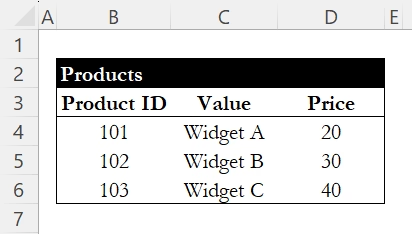
To find the price of "Widget B," you would use:
=VLOOKUP(102, B4:D6, 3, FALSE)
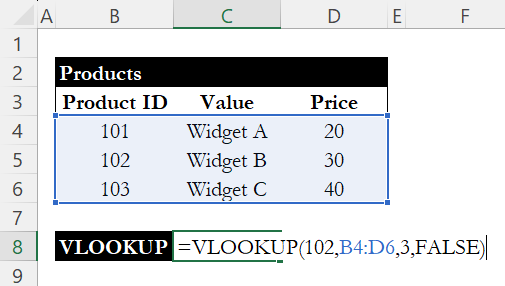
This function searches for Product ID 102 in the first column and returns the price from the third column, yielding a result of 30.

XLOOKUP Overview
XLOOKUP addresses some of the limitations of VLOOKUP. Its syntax is:
=XLOOKUP(lookup_value, lookup_array, return_array, [if_not_found], [match_mode], [search_mode])
- lookup_value: The value to search for.
- lookup_array: The array or range to search.
- return_array: The array or range containing the return values.
- [if_not_found]: Optional. The value to return if no match is found.
- [match_mode]: Optional. Specify exact or approximate match.
- [search_mode]: Optional. Define search direction.
XLOOKUP in Action
Using the same dataset, to find the price of "Widget B," you would use:
=XLOOKUP(102, B4:B6, D4:D6)

This formula searches for Product ID 102 in the lookup_array (B4:B6) and returns the corresponding price from the return_array (D4:D6), yielding a result of 30.
Key Differences
- Lookup Direction: VLOOKUP only searches from left to right, meaning the lookup value must be in the first column. XLOOKUP allows searching in any direction.
- Return Multiple Values: VLOOKUP can only return values from one column, while XLOOKUP can return multiple columns if used in array form.
- Error Handling: XLOOKUP includes an option for handling errors directly within the function, allowing for more streamlined formulas.
- Performance: XLOOKUP is generally faster than VLOOKUP, especially with larger datasets, as it is optimized for efficiency.
- Default Behavior: XLOOKUP defaults to an exact match, whereas VLOOKUP defaults to an approximate match if not specified.
Conclusion
While VLOOKUP has been a reliable function for years, XLOOKUP offers enhanced capabilities that make it a more versatile choice. When working with complex datasets, XLOOKUP is the preferred option due to its flexibility, error handling, and improved performance.
For a deeper dive into XLOOKUP with real-world examples, check out our guide on XLOOKUP.
Learn Excel by doing
Bite-sized lessons, drills, and daily challenges to build real spreadsheet skills.