How to Use the UNIQUE Function in Excel
Introduction
Lists often contain repeated values. The UNIQUE function returns only the distinct items, which makes summaries cleaner and easier to read.
What is UNIQUE?
The UNIQUE function extracts distinct values from a range. It can also return values that appear only once, depending on how you set the options.
Syntax
The syntax is:
=UNIQUE(array, [by_col], [exactly_once])
- array: The range of cells to check.
- [by_col]: Optional. TRUE to check columns instead of rows.
- [exactly_once]: Optional. TRUE to return values that appear only once.
Example
We have a dataset that contains a list of products from cells B4:B8. We'd like to identify the list of unique product names in this list, isolating and removing any duplicates.
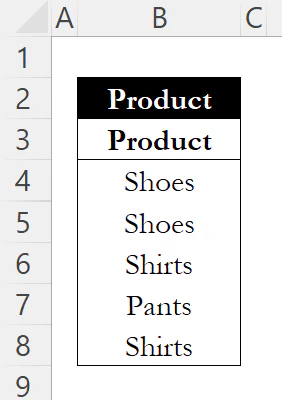
In cell D4, we'll type:
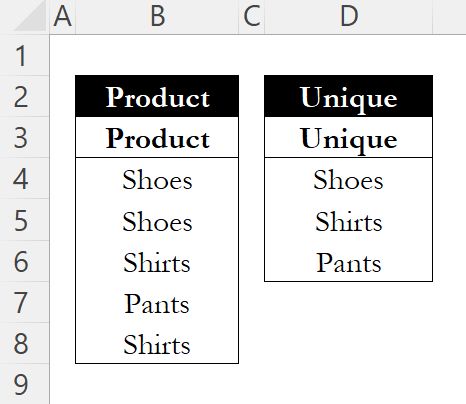
=UNIQUE(B4:B8)

After pressing enter, the UNIQUE function returns one instance of each product.
Why Use UNIQUE?
UNIQUE avoids manual steps like "Remove Duplicates" and updates automatically when the dataset changes. It keeps your lists current with minimal effort.
Conclusion
The UNIQUE function is a simple way to create distinct lists from repeating data. It's useful for cleaning inputs, building dropdowns, or preparing summary reports.
If you're looking to remove duplicates permanently rather than extract them, check out our guide on removing duplicates in Excel.
Learn Excel by doing
Bite-sized lessons, drills, and daily challenges to build real spreadsheet skills.