Effective Methods for Removing Duplicates in Excel
Introduction
Keeping your data clean matters. Duplicate entries can throw off totals, skew averages, and make reports harder to trust. Excel has built-in tools that make it easy to find and remove duplicates so you can get back to working with accurate data.
What Counts as a Duplicate in Excel
A duplicate is a row that has the same values in one or more columns as another row. These often appear when you're merging data from different sources or combining reports. Removing them keeps your dataset consistent.
Why Removing Duplicates Matters
- Data accuracy: Duplicate rows can inflate totals or skew results.
- Easier analysis: Clean data makes formulas and pivot tables more reliable.
- Better reporting: Reports built on unique records are clearer and more trustworthy.
Ways to Remove Duplicates in Excel
There are a few approaches: the built-in Remove Duplicates feature, advanced filters, or formulas such as COUNTIF. The Remove Duplicates feature is usually the fastest and simplest, so we'll focus on that here.
Example: Removing Duplicates from a Small Dataset
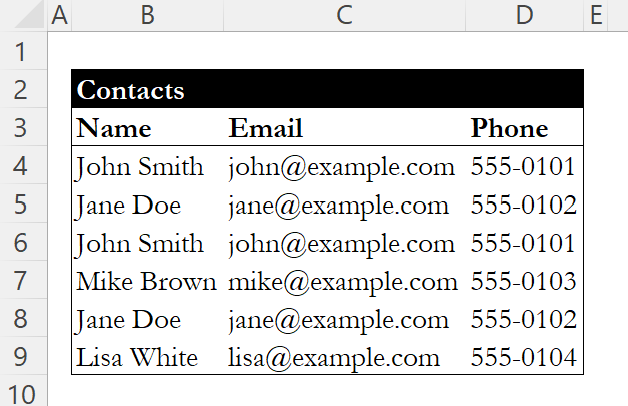
Let's walk through an example using a small dataset with names (Column B), email addresses (Column C), and phone numbers (Column D).
How to Remove Duplicates
- Select the Data: Highlight the relevant range (in this case, cells B3:D9), which includes the headers.
- Navigate to the Data Tab: Click on the "Data" tab.
- Click on Remove Duplicates: Choose "Remove Duplicates" from the "Data Tools" group.
- Select Columns: In the dialog box, all columns will be checked by default. Keep them checked since we want to find complete duplicates.
- Confirm: Click "OK."
- Review Results: Excel will show how many duplicates were found and removed. In this case, two duplicates were identified and removed.
Cleaned Dataset
After removing duplicates, the dataset will appear as follows:

Additional Considerations
- Back up your data: Make a copy of your sheet before removing duplicates so you can restore the original if needed.
- Review with filters: Apply filters to scan through potential duplicates before deleting them. This gives you a chance to confirm what will be removed.
- Use conditional formatting: Highlight duplicate values with conditional formatting to see them at a glance. This can help you spot patterns before using the removal tool.
Conclusion
Removing duplicates is a small step that makes a big difference. The built-in Remove Duplicates feature handles most cases quickly, and using filters or conditional formatting beforehand gives you more control over what gets removed.
If you're looking to build on your Excel fundamentals, check out our guide on SUM, AVERAGE, and COUNT functions.
Learn Excel by doing
Bite-sized lessons, drills, and daily challenges to build real spreadsheet skills.