How to Use SUM, AVERAGE, and COUNT in Excel
Introduction
Three of the most useful functions in Excel are SUM, AVERAGE, and COUNT. They let you quickly add numbers, find an average, and count how many items are in a list. This guide breaks down each function with clear examples so you can see exactly how they work and when to use them.
SUM Function
The SUM function is one of the most commonly used functions in Excel. It allows users to add together a series of numbers quickly. The syntax for the SUM function is as follows:
=SUM(number1, [number2], ...)
Here, number1 is the first number or range of cells you want to add, and number2 is optional, allowing you to add additional numbers or ranges.
SUM Function Example
Suppose you have the following data in cells B4 to B8:
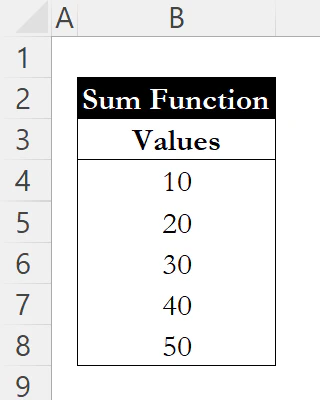
To find the total of these values, you would enter the following formula in another cell:
=SUM(B4:B8)

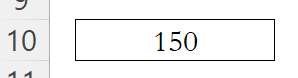
In this case, the formula adds all the numbers in the range B4 to B8. The result will be 150, as it adds 10 + 20 + 30 + 40 + 50. The SUM function is particularly useful for financial reports, budget calculations, or any scenario where aggregating values is necessary.
AVERAGE Function
The AVERAGE function calculates the mean of a group of numbers. This function is useful for determining the average value within a dataset. The syntax is as follows:
=AVERAGE(number1, [number2], ...)
Similar to the SUM function, number1 is the first number or range, and number2 is optional.
AVERAGE Function Example
Continuing with the previous dataset in cells B4 to B8, if you want to calculate the average, you would use the formula:

=AVERAGE(B4:B8)
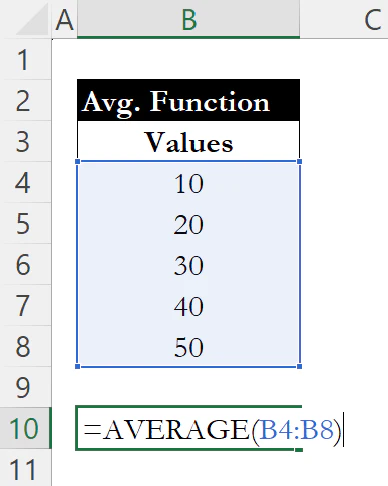
This formula calculates the average of the numbers in the specified range. The total of the numbers is 150 (as calculated earlier), and since there are five numbers, the average is 150 divided by 5, which equals 30. The AVERAGE function is essential for statistical analysis, performance assessments, and any situation where central tendency needs to be evaluated.

COUNT Function
The COUNT function is designed to count the number of cells in a range that contain numerical values. This function is particularly useful when assessing the size of a dataset or understanding the frequency of entries. The syntax for the COUNT function is:
=COUNT(value1, [value2], ...)
Here, value1 is the first cell or range you want to count.
COUNT Function Example
Using the same dataset in cells B4 to B8, if you want to count how many entries exist, the formula would be:

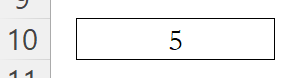
=COUNT(B4:B8)
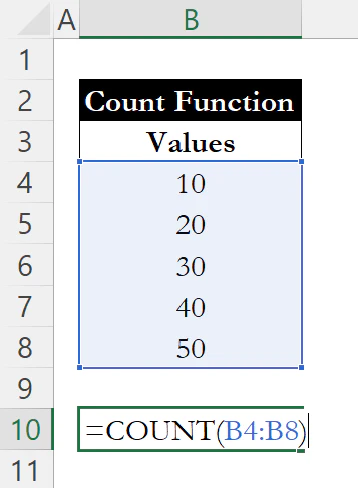
In this case, the COUNT function examines the range B4 to B8 and counts all the cells that contain numbers. Since there are five entries (10, 20, 30, 40, and 50), the result will be 5. The COUNT function is particularly useful in data validation and reporting, where knowing the number of entries is necessary.
Conclusion
SUM, AVERAGE, and COUNT are three of the first functions you'll want to get comfortable with in Excel. SUM quickly adds up values, AVERAGE shows the middle point, and COUNT tells you how many items are in a list. Knowing how to use these basics will speed up your work and give you a solid foundation for tackling more advanced analysis later on.
If you want to take conditional counting and summing further, check out our guide on COUNTIF and SUMIF. When your results need cleaner formatting, see how to control decimal places with ROUND, ROUNDUP, and ROUNDDOWN.
Learn Excel by doing
Bite-sized lessons, drills, and daily challenges to build real spreadsheet skills.