COUNTIF and SUMIF in Excel: Complete Guide with Examples
Introduction
Excel has dozens of functions for working with data, but two of the most useful for quick analysis are COUNTIF and SUMIF. They let you count or add values based on a condition, which makes them handy for spotting trends or pulling out key numbers. This article walks through how they work with simple examples.
What is COUNTIF?
The COUNTIF function counts the number of cells in a range that meet a specific condition. This function is particularly useful when analyzing datasets with categorical information.
The syntax is:
=COUNTIF(range, criteria)
- range: The range of cells you want to evaluate.
- criteria: The condition that determines whether a cell is counted. This can be a number, text, expression, or cell reference.
COUNTIF in Action
Consider a dataset containing sales data for different products:
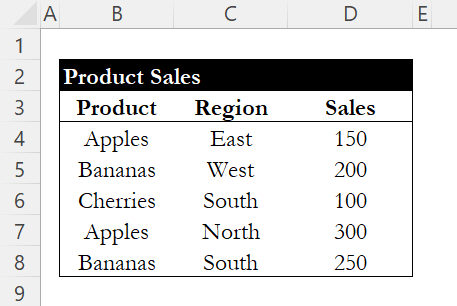
To count how many times "Apples" appears in the dataset: The COUNTIF function can be applied as follows:
=COUNTIF(B4:B8, "Apples")
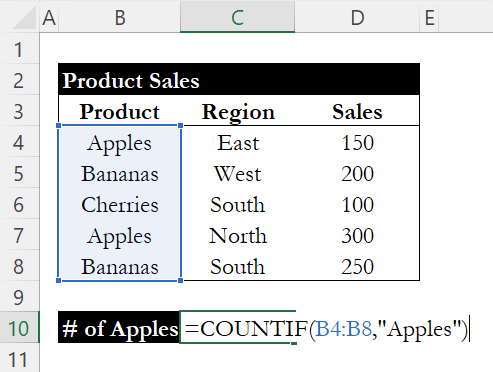
In this case, the function will return 2, as "Apples" appears twice in the specified range.

What is SUMIF?
The SUMIF function complements COUNTIF by summing values in a specified range based on a defined condition. This function is particularly useful for aggregating data based on categorical criteria.
The syntax is:
=SUMIF(range, criteria, [sum_range])
- range: The range of cells you want to evaluate for the criteria.
- criteria: The condition that must be met for a cell to be included in the summation.
- sum_range: The range of cells to sum. If omitted, Excel sums the cells in the range parameter.
SUMIF in Action
Using the same dataset, let's calculate the total sales for "Bananas." The SUMIF function would be utilized as follows:
=SUMIF(B4:B8, "Bananas", D4:D8)

This formula evaluates the range B4:B8 for the criteria "Bananas" and sums the corresponding values in the range D4:D8. The result will be 450, as the sales for Bananas are 200 and 250.

Using Comparison Operators
Both COUNTIF and SUMIF support comparison operators like >, <, >=, <=, and <> (not equal). This lets you count or sum based on numeric thresholds rather than exact matches.
For example, if you want to count how many products had sales greater than 150:
=COUNTIF(D4:D8, ">150")
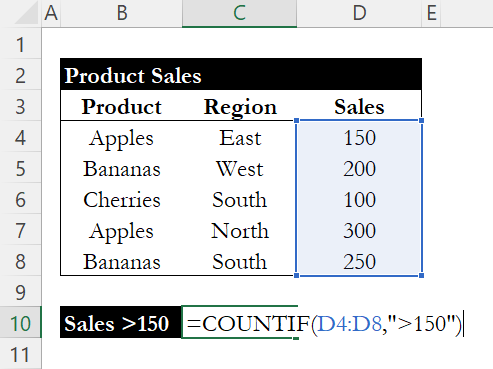
This formula will result in a count of 3, indicating three products had sales greater than 150.

Conclusion
The COUNTIF and SUMIF functions make it easy to count or add values that meet specific conditions. They're simple to learn and useful in many contexts, from tracking product sales to pulling totals in financial reports. Knowing how to use them well helps you turn raw tables into insights you can act on.
If you need to pull data from one table into another, check out our guide on XLOOKUP for fast data retrieval across datasets. You can also pair COUNTIF and SUMIF with date functions to count or sum by month or year, as shown in our Excel date functions guide.
Learn Excel by doing
Bite-sized lessons, drills, and daily challenges to build real spreadsheet skills.