PMT Function in Excel: Syntax, Examples, and Tips
The PMT function calculates the periodic payment for a loan or investment based on a constant interest rate and a fixed number of periods. If you need to figure out a monthly loan payment or how much to set aside each month to hit a savings goal, PMT handles it.
Syntax
=PMT(rate, nper, pv, [fv], [type])
- rate: The interest rate per period. For monthly payments on a 5% annual loan, enter
5%/12. - nper: The total number of payment periods. A 15-year loan with monthly payments would be
15*12. - pv: The present value, meaning the loan amount or current lump sum.
- fv (optional): The future value you want after the last payment. Defaults to 0 if omitted, which is standard for loans.
- type (optional): When payments are due. Use
0for end of period (default) or1for beginning of period.
Example: Mortgage Payment
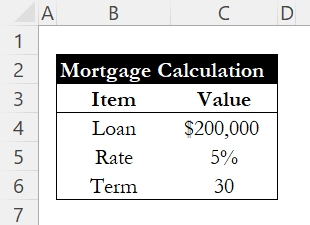
A borrower takes out a $200,000 mortgage at 5% annual interest for 30 years. To find the monthly payment, set up three cells:
| Cell | Label | Value |
|---|---|---|
| C4 | Loan Amount | $200,000 |
| C5 | Annual Interest | 5% |
| C6 | Loan Term (Years) | 30 |
Then in the payment cell, enter:
=PMT(C5/12, C6*12, -C4)
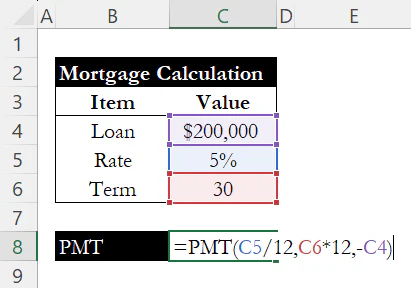
- C5/12: Converts the annual rate to a monthly rate (5%/12 = 0.42% per month).
- C6*12: Converts years to months (30 x 12 = 360 payments).
- -C4: The loan amount is negative because it represents money flowing out.
The result is $1,074 per month.

Why the Negative Sign?
PMT returns a negative number by default because it treats payments as outflows. If your present value is positive (money received), the payment is negative (money paid back). To get a positive result, enter the loan amount as negative (-C4) or wrap the formula in a negative: =-PMT(...).
Future Value (fv)
Most loan calculations leave fv at 0 because the goal is to pay off the balance completely. But fv is useful for savings scenarios. If you want to save $50,000 over 10 years at 6% annual interest with monthly contributions:
=PMT(6%/12, 10*12, 0, -50000)
This returns roughly $305 per month. The pv is 0 because you are starting from nothing, and the fv is negative because it is money you want to accumulate.
Payment Timing (type)
By default, PMT assumes payments occur at the end of each period (type = 0). Setting type to 1 shifts payments to the beginning of each period, which slightly reduces the payment amount because each payment has one extra period to earn interest.
Example: Car Loan
PMT works for any fixed-rate loan, not just mortgages. Suppose you finance a $25,000 car at 6% annual interest for 5 years:
=PMT(6%/12, 5*12, -25000)
The result is $483 per month.
Over 60 payments, you pay a total of $29,000, meaning $4,000 goes to interest. Compare that to the mortgage example above, where roughly $186,000 of the $387,000 total goes to interest over 30 years. The shorter term is the main reason: fewer periods means less time for interest to accumulate.
Breaking Down the Payment: PPMT and IPMT
Each payment PMT calculates contains two parts: principal and interest. Excel has dedicated functions to isolate each one.
=PPMT(rate, per, nper, pv)
=IPMT(rate, per, nper, pv)
PPMT returns the principal portion of a specific payment. IPMT returns the interest portion. The per argument is the payment number you want to examine.
For any given period, the relationship is simple: PMT = PPMT + IPMT. The total payment never changes, but the split between principal and interest shifts over time.
Using the $200,000 mortgage example from above:
| Period | IPMT (Interest) | PPMT (Principal) | Total (PMT) |
|---|---|---|---|
| 1 | $833 | $240 | $1,074 |
| 180 | $568 | $506 | $1,074 |
| 360 | $4 | $1,069 | $1,074 |
Early payments are almost entirely interest. By payment 180 (the halfway mark), the split has shifted noticeably toward principal. By the final payment, nearly the entire amount goes to principal. This pattern is called amortization, and understanding it helps explain why paying extra toward principal early in a loan saves the most interest.
Common Mistakes
- Using the annual rate instead of the periodic rate. Entering
6%instead of6%/12for monthly payments gives a wildly incorrect result. PMT expects the rate per period, so always divide an annual rate by the number of payments per year. - Mismatching rate and nper. If you divide the rate by 12 for monthly payments, nper must also be in months (years x 12). Mixing a monthly rate with a yearly nper, or the reverse, produces numbers that look plausible but are wrong.
- Confusion about the sign. If PMT returns a negative number when you expected positive, check whether you entered pv as a positive or negative value. See the section on the negative sign above.
Key Considerations
- Fixed rate only. PMT assumes a constant interest rate across all periods. It does not handle adjustable-rate loans or varying payment schedules.
- Principal and interest only. The result covers principal and interest. It does not include taxes, insurance, or fees that might be part of your actual payment.
- Rooted in time value of money. PMT is built on the principle that a dollar today is worth more than a dollar in the future. If you want to understand why the formula works the way it does, see our guide on time value of money.
Conclusion
PMT takes a rate, a number of periods, and a present value, and returns the fixed payment amount. Once you understand how the optional fv and type parameters work, you can use it for savings goals and annuity calculations, not just loans. For a hands-on mortgage walkthrough, check out our guide on mortgage payments in Excel, or see how PMT fits alongside NPV, IRR, FV, and XNPV for broader financial analysis.
Learn Excel by doing
Bite-sized lessons, drills, and daily challenges to build real spreadsheet skills.