How to Use IFERROR in Excel (With Examples)
Introduction
Working with Excel is efficient, but it can get messy when formulas throw errors like #DIV/0! or #N/A. Even experienced users run into them. The IFERROR function is designed to handle these situations by giving you control over what appears when an error occurs. Instead of a sheet full of error codes, you can return something more useful.
What is IFERROR?
The IFERROR function checks a formula for errors and, if one occurs, displays an alternative result you specify. Without it, error messages like #DIV/0!, #N/A, or #VALUE! can clutter your sheet and make reports harder to read. With IFERROR, you can replace those errors with text, a number, or even another formula.
Syntax
The syntax is:
=IFERROR(value, value_if_error)
- value: The formula or expression to check.
- value_if_error: The result to return if the formula generates an error.
Example
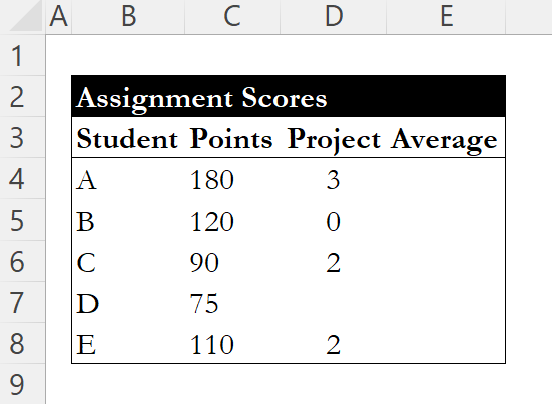
Suppose you are calculating the average points per project for each student. If a student has zero projects listed by mistake, dividing points by zero would normally return #DIV/0!. Wrapping the formula with IFERROR gives a cleaner result.
The table we will use is below, with points in column C, # of projects in column D, and the average score per project in column E.
Without Error Handling
In E4 we'll enter and fill down:
=C4/D4

Student B returns #DIV/0! because Projects is 0. Student D returns #DIV/0! because Projects is blank.
With IFERROR
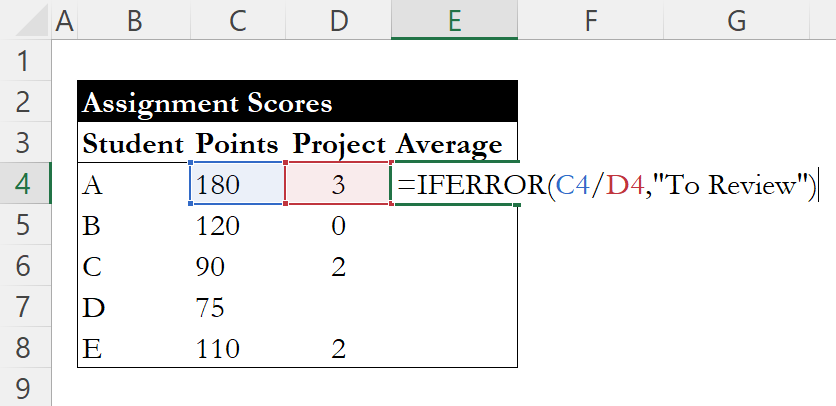
Replace E4 with and fill down:
=IFERROR(C4/D4, "To Review")
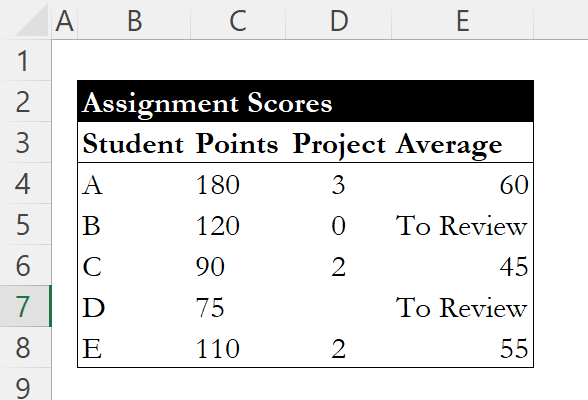
Rows with 0 or blank in Projects show "To Review" instead of an error, which is much easier to look at and assess.
Why Use IFERROR?
IFERROR doesn't change the calculation itself. It only replaces errors with a clearer result, such as text or a placeholder value, so your sheet remains easy to read even when data is missing or incomplete.
Conclusion
Errors are common in Excel when working with real-world data. IFERROR helps manage them by letting you decide what appears in place of error codes. It's a simple way to make spreadsheets easier to understand and present.
If you're looking for more ways to handle conditional logic, check out our guide on IF, AND, and OR functions. For a breakdown of every error type Excel can throw, see our guide on Excel errors.
Learn Excel by doing
Bite-sized lessons, drills, and daily challenges to build real spreadsheet skills.