Unlock Excel's Power: Master IF, AND, and OR Functions
Introduction
Excel's IF, AND, and OR functions let you build formulas that act like decision rules. Instead of just calculating, they check conditions, like whether sales hit a target, and return the result you choose. Here's how each function works, plus an example that shows what they can do when combined.
The IF Function
The IF function checks a condition and returns one value when it's true and a different value when it's false.
The syntax is:
=IF(logical_test, value_if_true, value_if_false)
- logical_test: The condition you want to evaluate.
- value_if_true: The value to return if the condition is true.
- value_if_false: The value to return if the condition is false.
For example, if you want to label a student's score as "Pass" or "Fail" based on whether it's above 50:
=IF(B4>50, "Pass", "Fail")

If the value in cell B4 is greater than 50, Excel returns "Pass". Otherwise, it returns "Fail".
The AND Function
The AND function tests multiple conditions at the same time. It returns TRUE only if every condition is true. This is useful when you need all criteria to be met before taking action.
The syntax is:
=AND(logical1, logical2, ...)
- logical1, logical2, ...: The conditions you want to test.
You'll often use AND inside an IF statement. For example, say a student's score must be above 50 and their attendance must be above 80% to be eligible:
=IF(AND(B4>50, C4>80%), "Eligible", "Not Eligible")
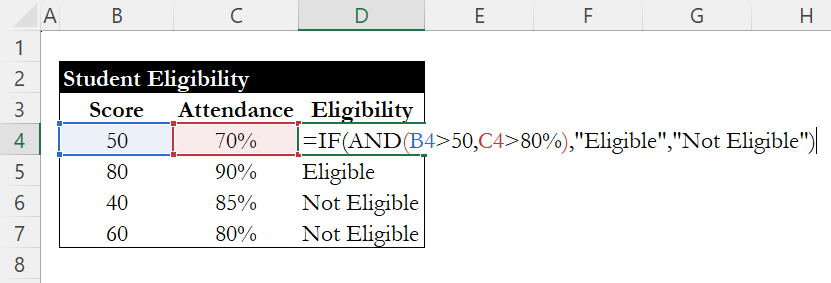
The formula checks if the score in B4 is greater than 50 and the attendance in C4 is greater than 80%. If both are true, it returns "Eligible". If either one fails, it returns "Not Eligible".
The OR Function
The OR function works like AND, but it returns TRUE if at least one condition is true. Use it when any of several conditions is enough.
The syntax is:
=OR(logical1, logical2, ...)
- logical1, logical2, ...: The conditions you want to test.
For example, say a customer qualifies for a discount if their purchase is over $100 or if they're a loyalty member (indicated by "Yes" in column C):
=IF(OR(B4>100, C4="Yes"), "Discount", "No Discount")
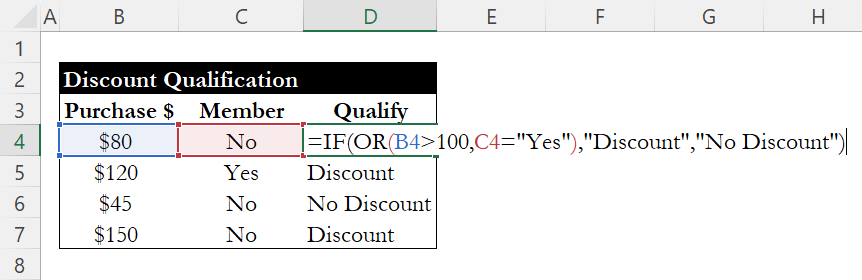
If either the purchase amount in B4 is greater than 100 or C4 is "Yes", the formula returns "Discount". Both conditions don't need to be true, just one.
Combining IF, AND, and OR
When you nest AND and OR inside an IF, you can handle more complex logic in a single formula.
Say you want to determine whether a salesperson earns a bonus. The rules are:
- Sales must be over $5,000 (cell B4)
- They must also have either 90%+ meeting attendance (cell C4) or more than 50 individual sales (cell D4)
Here's how to write that:
=IF(AND(B4>5000, OR(C4>=90%, D4>50)), "Bonus", "No Bonus")

Breaking it down:
- AND checks that sales are over $5,000 and that the OR condition is true.
- OR checks if either attendance is 90%+ or individual sales exceed 50.
- If everything in the AND passes, the result is "Bonus". Otherwise, "No Bonus".
Conclusion
IF, AND, and OR are the building blocks for conditional logic in Excel. IF handles the decision, AND requires all conditions to pass, and OR requires just one. Once you're comfortable combining them, you can handle most rule-based scenarios in a single formula, whether that's grading students, qualifying customers, or calculating bonuses.
For more on working with conditions, check out our guide on COUNTIF and SUMIF. If your nested IFs are getting hard to manage, see our guide on IFS and SWITCH.
Learn Excel by doing
Bite-sized lessons, drills, and daily challenges to build real spreadsheet skills.